Getting started...
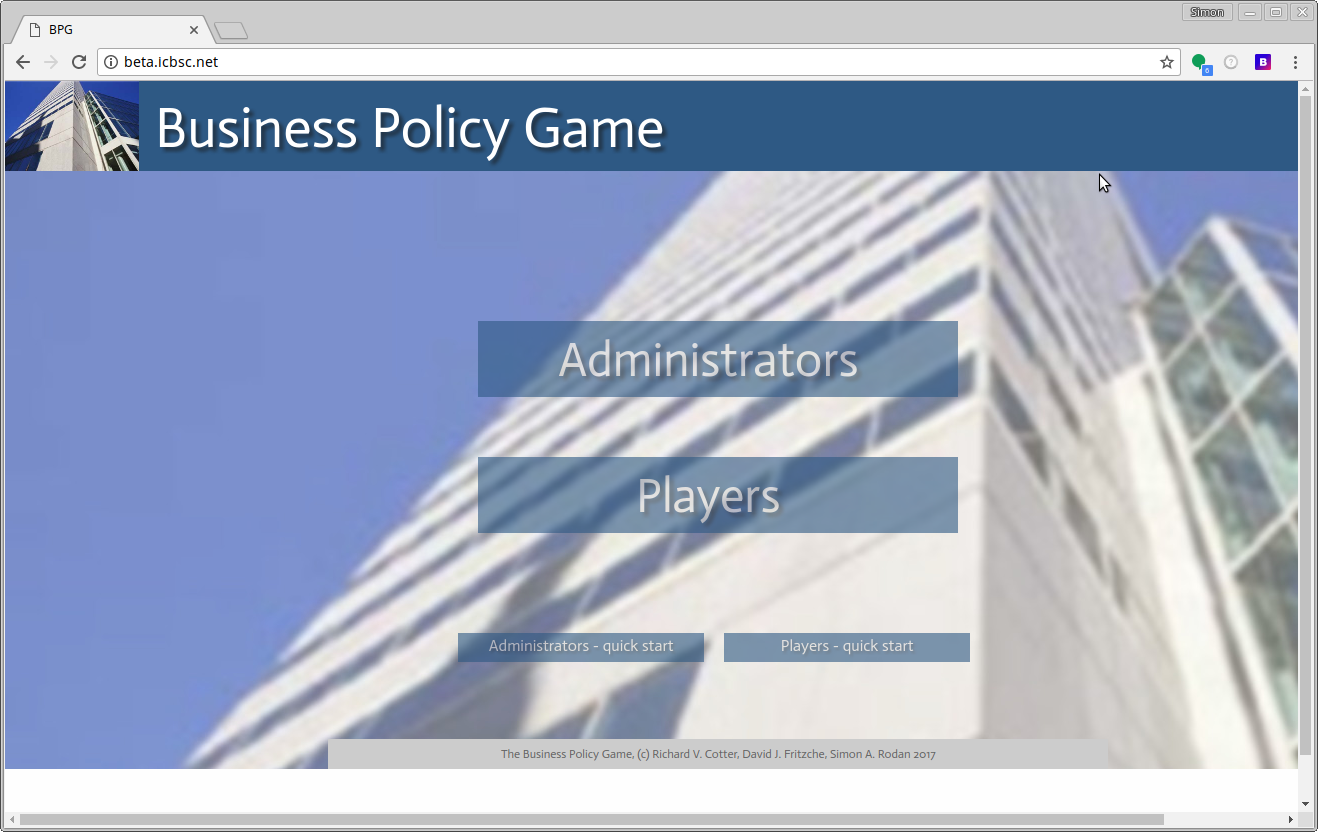
This is the site landing page. Click on the "Players" button.
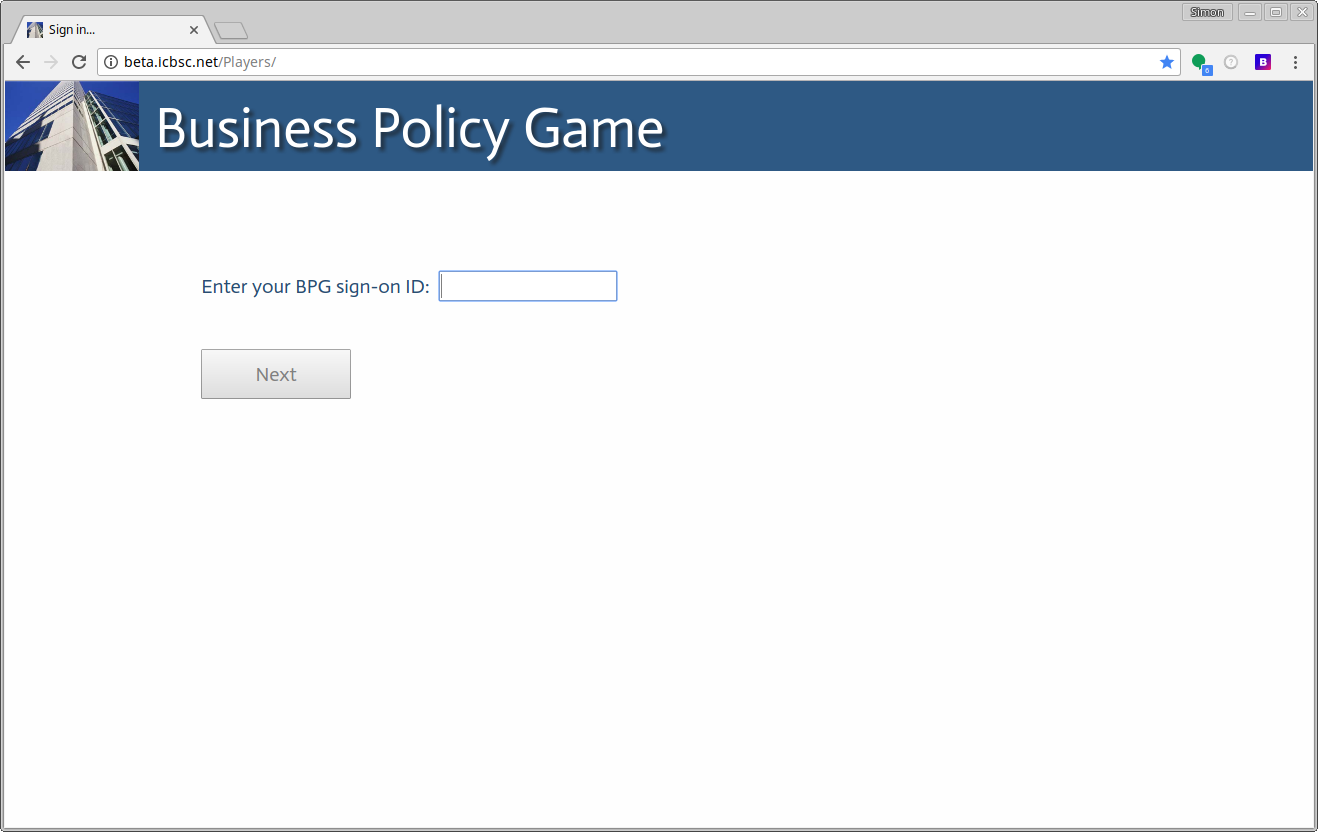
Your instructor will have given you the sign-on ID and a initial password for your team. Enter the sign-on ID on this screen.
Now enter the password.
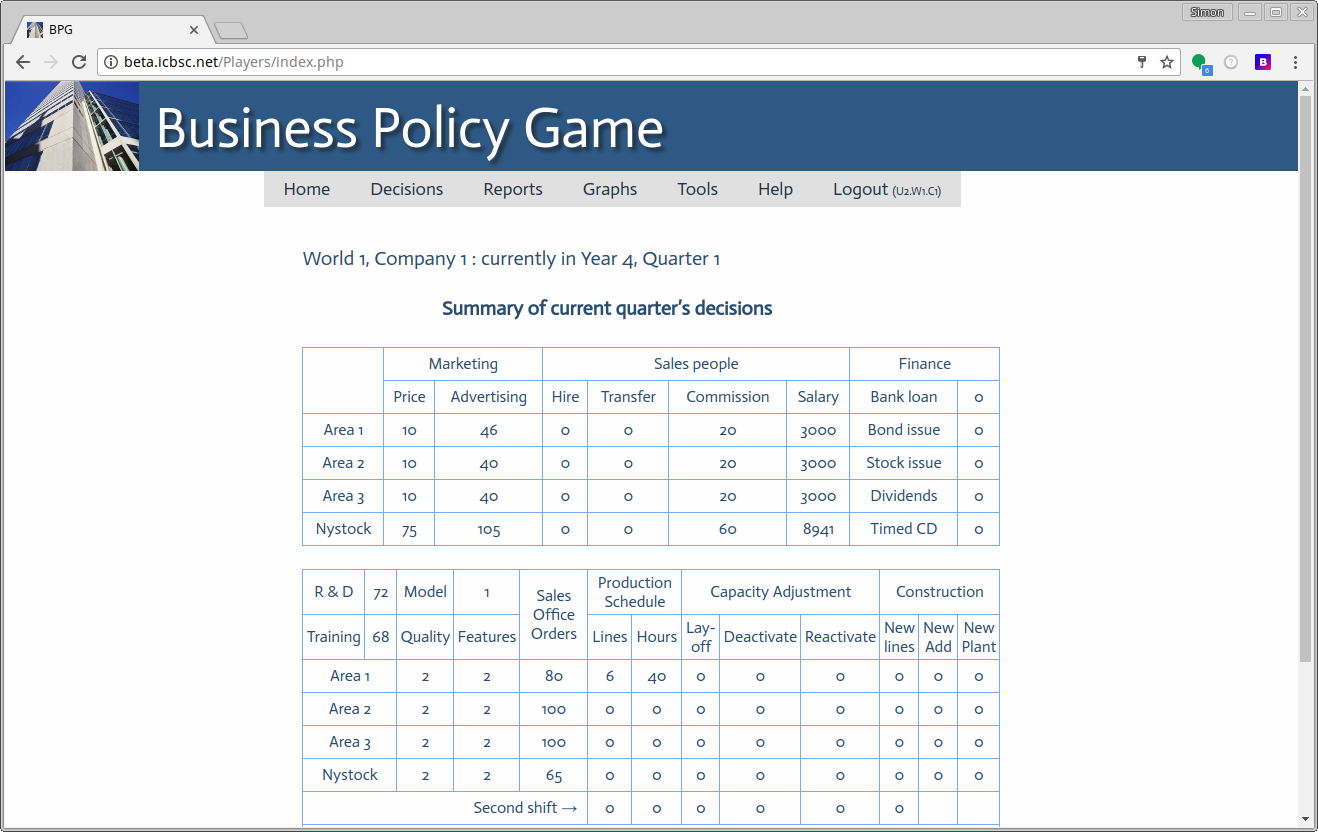
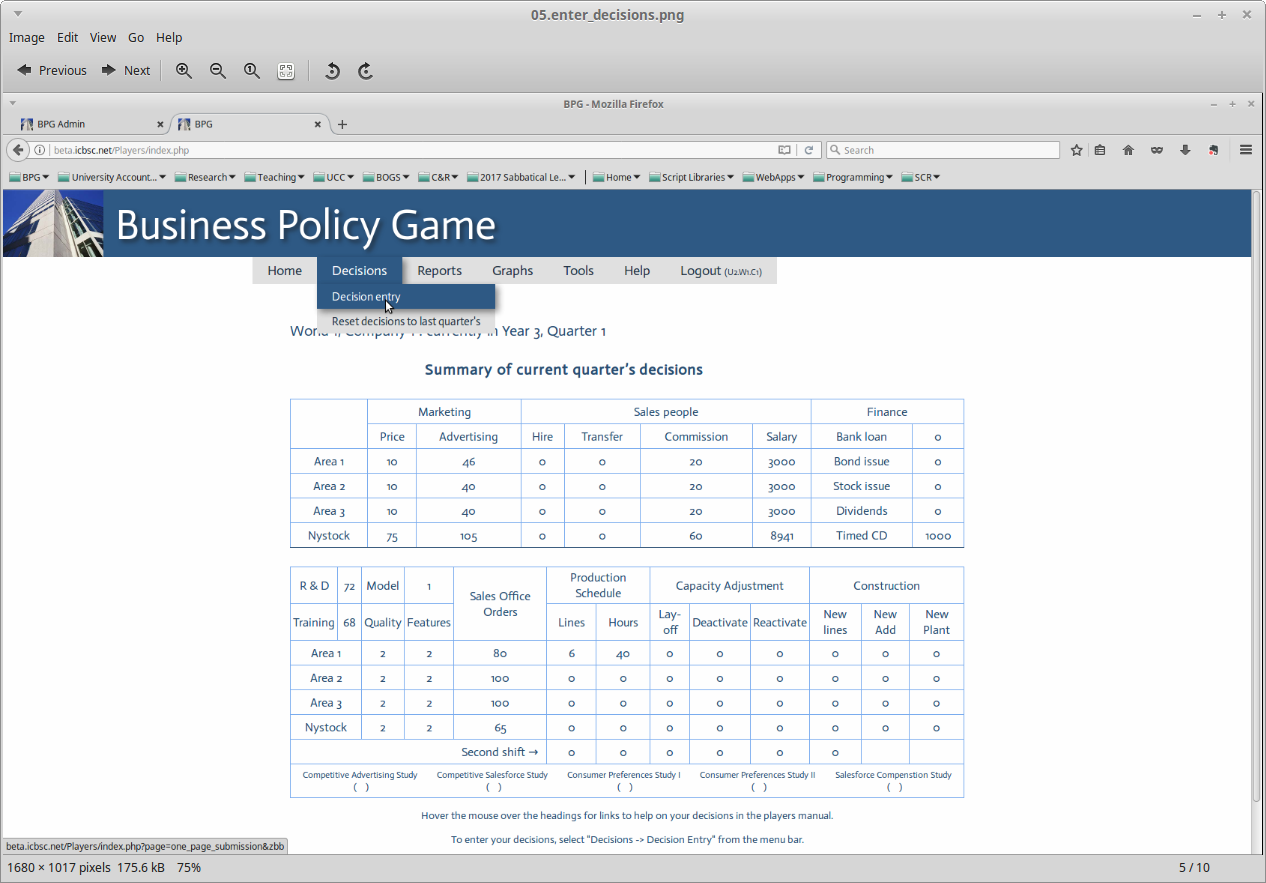
This is the simulation home page. It shows a summary of the last set of operating decisions.
To enter your decisions for the current quarter, use the menu bar and navigate to "Decision entry" as shown below.
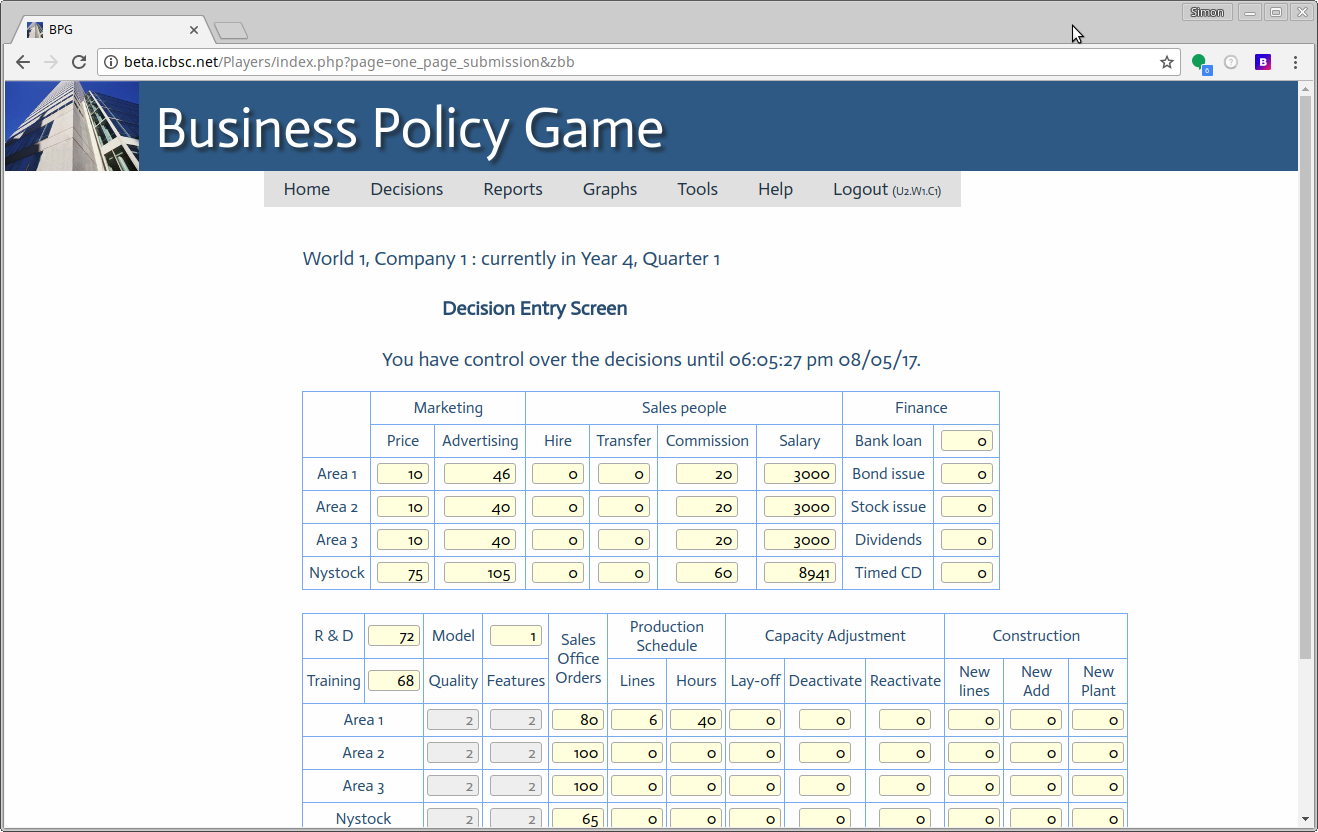
The decision entry screen looks like the home page summary except the fields are open for you to enter your decisions.
Don’t forget to press save before leaving the this screen...
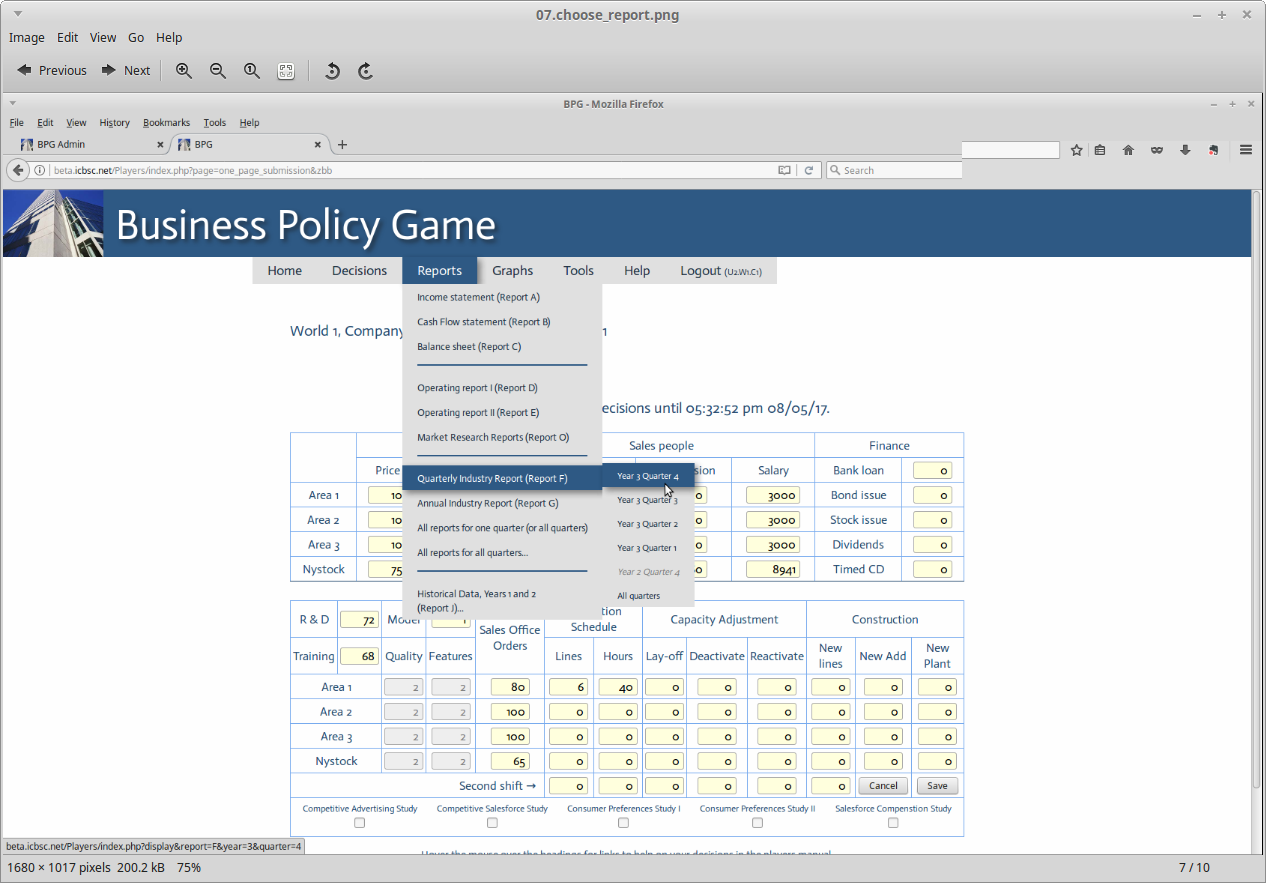
After your instructor runs the simulation for the quarter, you can see how you did by looking at the various reports.
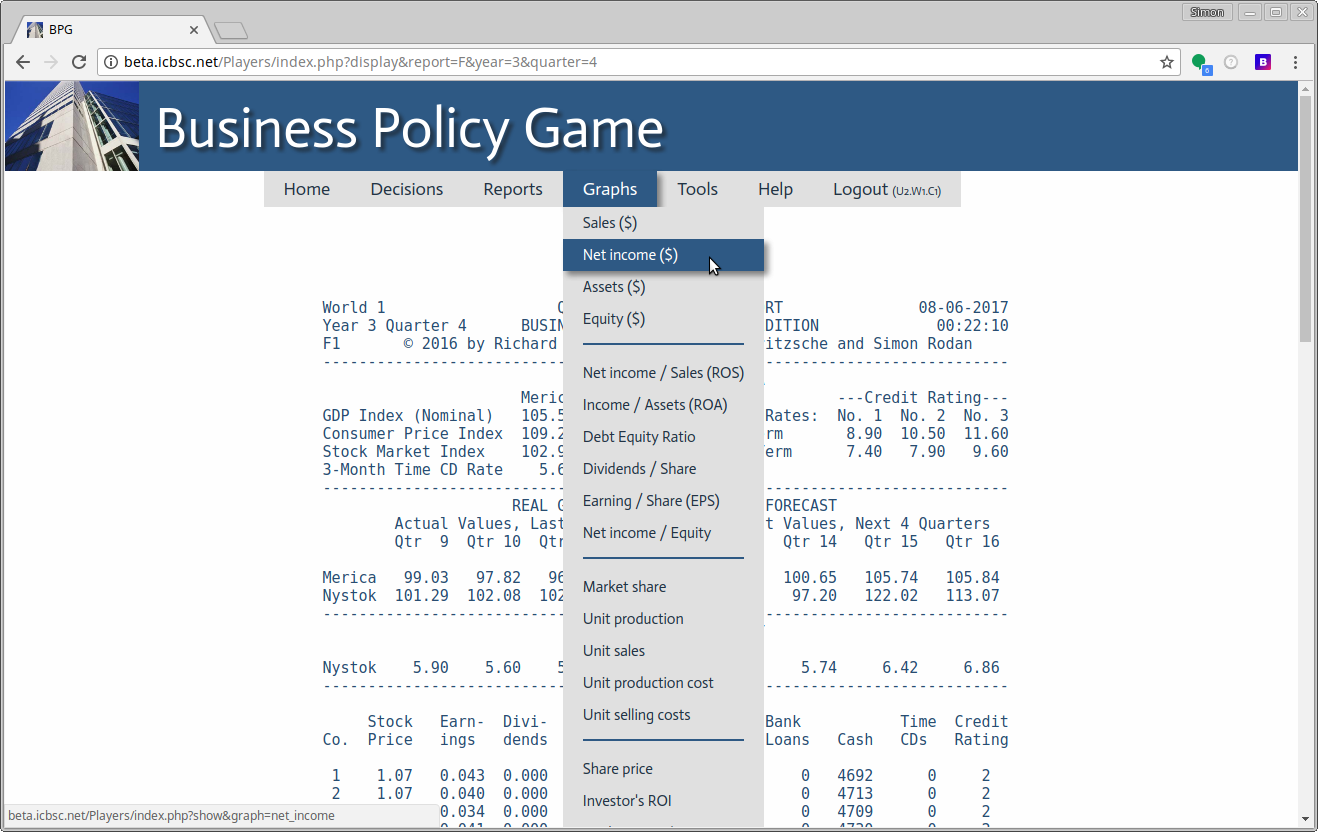
A good place to start is generally "Report F". To display each of the reports, use the drop-down menus...
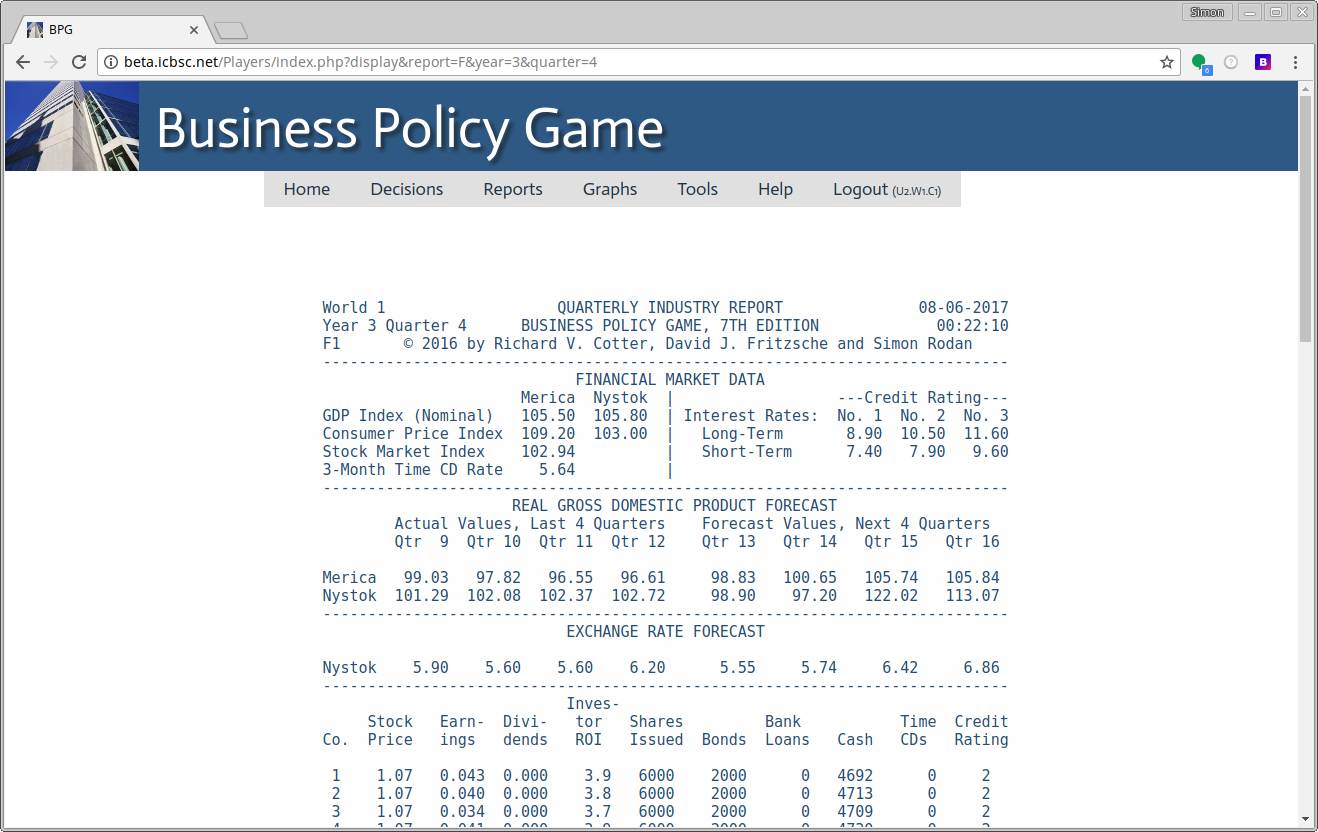
Shown here is the top portion of "Report F", the Quarterly Indsutry Report.
Many commonly used metrics can be displayed graphically. Use the "Graph" drop-down menu to select a graph.
This graph is for net income for the first four quarters (the simulation starts at the beginning of Year 3).

For more detailed information on the simulation, refer to the Players manual